Install Nodejs on Ubuntu — LinuxBots

Node.js is an asynchronous event-driven JavaScript runtime built on Chrome’s V8 JavaScript engine. It runs at the server-side. It mainly used for easily building fast and scalable network applications. In this article, you will find ways to install Nodejs on Ubuntu Linux.

In this tutorial, we will install the node.js in Ubuntu using two different ways. The first method is by using Ubuntu’s Official repository and second is by using the nodesource repository.

Nodejs latest version

At the time of writing this article, the latest version of the nodejs is 13. But we will install the LTS version of nodejs which is version 12. However, if we install the nodejs using Ubuntu’s Official repository, then we will not get the latest version of nodejs.

Official repository of Ubuntu 18.04 LTS is having nodejs version 8.10 and Ubuntu 16.04 LTS is having version 4.2. However, if you want to install the latest version or the LTS version of nodejs then you have to use the nodesource repository.

Install Nodejs on Ubuntu using Official repository

For this tutorial, we are using Ubuntu 18.04. However, you can follow the same steps for other versions of Ubuntu.

Read full article at https://www.linuxbots.com

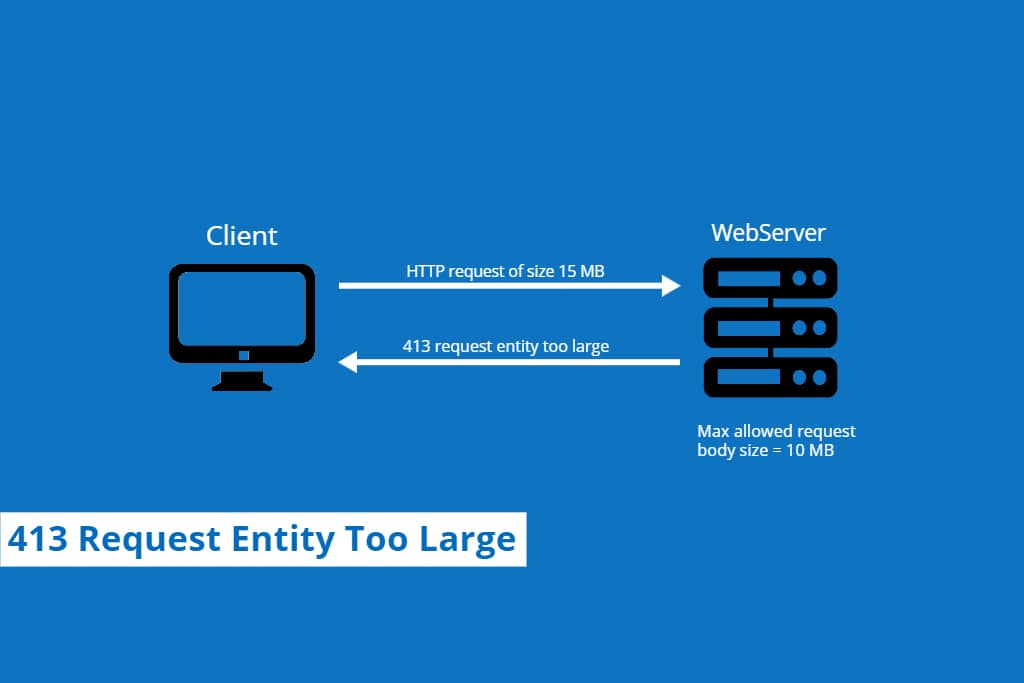
413 request entity too large error solution — LinuxBots

I am personally using Nginx as my primary web server with PHP-FPM but also having some setups with Nginx as a proxy to Apache Server. Many times, when I try to upload a file or made a large HTTP request, Nginx gives the error 413 request entity too large. That’s why I thought this issue needs to be documented.

Error 413 request entity too large occurs when a client request exceeds the maximum accepted body size by the webserver configuration. The two most used webservers are Apache and Nginx.

The default request size allowed by Apache is unlimited but in Nginx, it is only 1 MB. That’s why when we try to upload a file larger than 1 MB, Nginx giving the request entity too large error. In this article, you will find how to control HTTP request size in Apache and Nginx.

Fixing request entity too large error in Nginx

In Nginx, the maximum client request body size is defined by the client_max_body_size directive. By default, it is defined in the Nginx configuration file located in /etc/nginx/nginx.conf. However, you can directly define it into either your http, location or server block.


Read Full Article at https://www.linuxbots.com

Laravel clear cache (All Methods) — LinuxBots

Laravel, one of the most widely used PHP framework. In this compact article we learn how to clear laravel cache by using terminal and browser. Laravel uses different types of cache for the application. When we made changes in the code then we have to clear caches for applying changes.

Laravel clear cache using Terminal

For this method you need the command line access of your web server. Because we have to navigate to the laravel project folder and run some commands from the terminal in this method.

At the very first step, Goto the laravel project directory using the cd command.

cd /path_to_your_laravel_application_folder/

1 : Clear Configuration Cache

Laravel combine all of the configuration files into a single, cached file. However you can clear the configuration cache by running the below command from terminal.

Read full article at https://www.linuxbots.com

Vim Commands — Basic Vim cheat sheet for everyday use — LinuxBots

VI improved text editor or VIM text editor is an opensource solution available for both CLI and GUI interfaces. In this cheat sheet, you will find most of the Vim Commands which are needed when you will work with text files in the CLI interface.

So let’s start with open a file in Vim text editor. Use the below command to open a file in Vim CLI interface.

vim myfilename

Vim text editor is having two different mods Insert mode and Command mode.

Insert mode:

When you need to write normal text in a file, you can just press i for insert mode and start writing. After writing Press Esc. to go back into the command mode.

Command mode:

The default mode you will get when you open a file in Vim editor. From here you will give commands to the editor for all operations.

Below is the list of basic vim commands –

Read Full Article at https://www.linuxbots.com

Tcpdump Examples – LinuxBots

is one of the most powerful command-line packet analyzer tools for all IT Professionals. In this tutorial, we share some practical examples of tcpdump tool which should be known by every IT Professional.

A well-known network sniffer tool for network monitoring which provides plenty of options. From analyzing live network traffic to capture specific traffic in a file, you can do all with tcpdump. Easy availability for all the operating systems, makes it more popular.

There are many other tutorials available for tcpdump on the internet but the proper explanation of commands and examples are not available. So, here we decide to document some well-explained examples of tcpdump in simple and understandable language.

Above all, let’s have a look at the history of the tcpdump tool. tcpdump was written at Lawrence Berkeley Laboratory in 1988. The official website www.tcpdump.org created in 1999.

Install tcpdump

Let’s start by installing tcpdump in different operating systems. use the below commands to install it.

######### For CentOS/Fedora ############# sudo yum install tcpdump ######## For Ubuntu/Debian ############## sudo apt-get install tcpdump ######## For Arch Linux ################ sudo pacman -S tcpdump

If you have a different OS, you can download it from its Official Website.

The following are the examples of tcpdump tool.


Read Full Article at https://www.linuxbots.com

Install Kali Linux on VirtualBox [Safest Method] — LinuxBots

This tutorial describes the simplest way to install Kali Linux on VirtualBox in Windows or Linux. Kali is a Debian based Linux distribution built for hacking and penetration testing.

Kali Linux is one of the best Linux distribution for Pentesters and Security Researchers. At the time of writing this tutorial, the latest version of Kali Linux is 2020.1.

While Kali Linux 2020.1 Released with some good features like non-root users policy. It is safer to use it via a virtual machine. Meanwhile, you can also use it as your primary Operating System.

VirtualBox is an opensource solution for using guest operating systems, Just like VMware and Hyper-V. With the use of VirtualBox, you can use Kali Linux as a regular application in your system.

Most importantly when we talk about hacking, it is better to be safe. Using Kali Linux in Virtual Machine does not affect your base operating system. Even if something goes wrong in the virtual machine, your host machine will remain safe.

How to install Kali Linux on VirtualBox

In this tutorial, our base operating system is Ubuntu and we use VirtualBox on it. VirtualBox is one of the best Virtualization software available free and opensource for Windows and Linux both.

Read Full Article at https://www.linuxbots.com

How To Install Nginx on Ubuntu 18.04 — LinuxBots

Nginx is the second most used web server in the world. According to the Netcraft survey, Nginx is used by approx 25% of the busiest sites on the web. Nginx is mainly known for its low resource consumptions and high performance. Nginx can be used as a web server or reverse proxy with apache in frontend.

In this tutorial, we’ll install the Nginx web server on Ubuntu 18.04 LTS server.


Read the full article at https://www.linuxbots.com

How to Install Zabbix Server on Ubuntu 18.04 & 16.04 LTS — LinuxBots

Zabbix is a Free and Open-source enterprise-class monitoring software for servers, networks, and services. Zabbix offers a lot of reporting and data visualization features based on the stored data. This tutorial describes how to install Zabbix 4.0 LTS on Ubuntu 18.04 & 16.04 LTS systems.

Zabbix can be used for agent-based and agent-less monitoring. The Zabbix agent is available for various platforms like Linux, UNIX, macOS, and Windows. Zabbix created by Alexei Vladishev and released under GPL V2 License.


Read Full Article at https://www.linuxbots.com

Kali Linux 2020.1 released: New Features and Download

Kali Linux 2020.1 released as the first release of the decade and it’s available for download since 28 Jan 2020. This release fo Kali comes with several new features, including the long-awaited Non-Root by default feature.

Kali Linux is an open-source Linux Distro for Pentesters and Security Researchers. Most of the open-source tools for penetration testing are built-in Kali Linux.

What’s new in Kali Linux 2020.1?

The following is the list of features comes with this release:

  • Non-Root by default
  • Kali single installer image
  • Kali NetHunter Rootless
  • Improvements to theme & kali-undercover
  • New tools

Read Full Article here Kali Linux 2020.1 released: New Features and Download

Install Laravel on Ubuntu 16.04 with Apache — LinuxBots

In this tutorial, we will explain how to install and run the latest stable version of the Laravel 6.0 PHP Framework on Ubuntu 16.04 LTS (Long Term Support) with Apache2 and PHP 7.4 support.

Laravel is a lightweight and flexible open-source PHP framework solution with an MVC (Model-View-Controller) design structure. Laravel certainly focuses on building scalable and flexible web applications with ease. In addition, it has in-built features like caching, authentication, session management, routing, and unit testing. As a result, it becomes the first choice of many PHP developers.

Prerequisites

Above all, An installed instance of Ubuntu 16.04 LTS is required with a privileged user for installation.

After that, Update your system sources and existing software packages using the following commands.

sudo apt-get update sudo apt-get upgrade

On the other hand, the following components are needed for Laravel 6.0 LTS.

  • PHP >= 7.2.0
  • BCMath PHP Extension
  • Ctype PHP Extension
  • JSON PHP Extension
  • Mbstring PHP Extension
  • OpenSSL PHP Extension
  • PDO PHP Extension
  • Tokenizer PHP Extension
  • XML PHP Extension

Read Full Article at https://www.linuxbots.com

Design a site like this with WordPress.com
Get started